Sunday, October 10, 2010

Issues with Windows server 2008 and Lotus Domino java controller service

A special thanks to Pontus Wennergren for posting the following:

Your solution works very well since I had a similar problem. The service just refused to start but application worked fine.

But I prefer to make changes in notes.ini instead of the hosts file and when I found this:

http://www-10.lotus.com/ldd/nd85forum.nsf/5f27803bba85d8e285256bf10054620d/623744895c016a63852577310025230d?OpenDocument

and tried it, it worked just aswell so I am sticking to
TCPIP_ControllerTcpIpAddress=


Below is my original post for those that are interested:

Recently I've had an issue with a Lotus Domino 8.5.1 FP1 server running on Windows Server 2008. The service is setup to run

"d:\lotus\domino\nservice.exe "=d:\lotus\domino\notes.ini" "-jc" "-c"

However when I try to start the service I get this error:

The Lotus Domino Server (DlotusDominoData) service on local computer started and then stopped. Some services stop automatically if they are not in use by other services or programs.

No matter what I do I cannot get the server to launch under the service! I can launch the server under my remote desktop session but then I can't log off.

So looking at the d:\lotus\domino\data\dcontroller.ini file I found this entry:

Host_Name=traveler01.theozzyblogger.com

and I decided to ping this address on the same server. When I did that I received the IP6 address! So as a troubleshooting measure I input the IP4 IP and server name in the hosts file ( c:\windows\system32\drivers\etc\hosts ) and the service starts with no issues! I ended up un-checking IP6 and removed my hosts entry and that worked too. It turns out when I un check the IP6 it uses loop back address of

::1:

So I had to put the hosts entry back in to make it work... I think I will call IBM on this one. I will update with what I find.

The strange thing is this has worked all along and just recently became an issue. I wonder if a Windows update is to blame...

Friday, October 8, 2010

Roaming user and lotus notes 8.5.2 problems

Something is not right with the 8.5.2 client and roaming. Here is the scenario:

I have a user that has a desktop pc and a laptop. At this point neither names.nsf or bookmark.nsf have the same replica ID. So I go to upgrade the user to use roaming with the admin client. Next I get a pop up on the desktop pc:

Note: I've noticed that you can only have one client open at a time to see the roaming user message.


So I click 'Ok' to Convert to roaming now. I get the following screen:


After the roaming upgrade process is finished and the databases have been replicated to the server I log out of the Lotus Notes client on the pc. Next I go to the laptop and sign in and I get the following message:


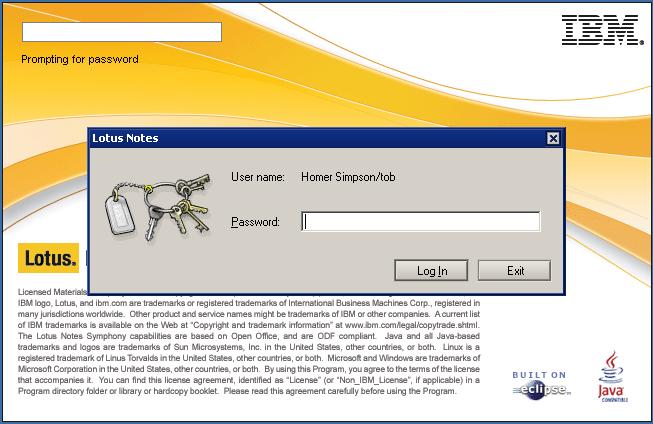
I click ok and Lotus Notes shuts down. Then Lotus Notes automatically starts again and prompts me for the password:


However there is something different about this login screen. Notice there is no drop down for location and id. So before I input my password I checked the data folder:

Notice the highlighted files with the .000 extensions. The names.nsf doesn't exist at this point. So I go back to my login screen and type my password and I get this:

At this point my notes client cannot see my server and it makes sense. In my DNS I do not have an entry for 'Traveler01' and the names.nsf is renamed to names.000 so the connection document will not work. So click 'No' to the prompt above. There are two ways to get around this.

1. Enter the domino server name ( in this case traveler01 ) in DNS and point it to your Lotus Domino server IP. Lotus Notes will always check that first part of the domino server name first in DNS ( this is also the reason why when Lotus Notes is configured and you do not have a connection document for your domino server, this is already configured in DNS ). So if you domino name is test123/test/US, the DNS record needs to be test123.

2. Use the hosts file to temporarily add this entry and remove it after it is done.

Lets go with option 2. So on most XP and Vista ( and Windows 7? ) machines the hosts file is contain under
C:\Windows\System32\Drivers\etc\hosts

The hosts file does not have an extension. Also if you have user access control security turned on ( Vista and Windows 7 only ), you must Launch notepad using 'run as administrator'


to be able to open, edit, and save the file. Otherwise when you go to save the file, it will ask you where to save as. So add a new line to the hosts file, with the syntax of 'IP [tab] name'. So since my domino server name is 'traveler01/tob', and my traveler01/tob ip is 10.1.1.12, I need to make an entry for '10.1.1.12          traveler01' like so


Now launch Lotus Notes again it will work:


Also check out the data folder after the roaming configuration:

Notice the new .nsf files appended on the end. The original .nsf files are now .000 files can be renamed to .nsf if you need to access them at another time. Next choose the location from the names.nsf pulled from the server:

Last and most importantly remove the entry for the traveler01 server from the hosts file and save.


I hope IBM decides to cache the connection document in future releases. Here is a good website for troubleshooting roaming issues:

http://www-01.ibm.com/support/docview.wss?rs=899&uid=swg21424754

Thursday, October 7, 2010

Android traveler code drop 1 behavior

The Android traveler code drop 1 is a really great piece of software. However here are a list of annoyances that I have found:


1. When an email is read and moved to a folder on a pc, the new email notification will still display in the notification bar of the Android device. Attempting to open the email from the notification bar doesn't open anything and the email notification in the notification bar doesn't go away. The only way to get ride of it without having to reboot is to open the Traveler mail application.

2. The name lookup cannot find group names

3. When sending a message from the Traveler device, I cannot determine if a message sent correctly because you cannot see the sent folder from Traveler. If the email address is not correct, the Traveler client still says it sent the message.

4. Calendar alerts do not display a notification in the device.


That is it for now, I will be updating this post when I find more.

Tuesday, October 5, 2010

Using Android traveler beta on Lotus Domino release 8.5.2

First thing is first, do not use this in a production environment, use a test environment. Also, I cannot vouch for the stability of your Lotus Domino / Traveler environment while using the Android Traveler beta program. Now on with the instructions:

First, install Lotus Domino 8.5.2 and configure the server ( consider using 'More name variations with lower security' on the traveler server, I ran into some issues logging in using 'Fewer name variations with higher security'). Next install traveler 8.5.2. Next shut down Lotus Domino and install the Android traveler beta ( I am using code drop 1 ) by unpacking the files and copying them to the correct location according to the readme.txt:

The following files are copied from the zip to the domino server:

readme.txt
domino/html/traveler/LotusInstaller/LotusInstall.apk
domino/html/traveler/LotusTraveler/android/LotusTraveler.apk
traveler/cfg/client/VersionInfoExt.txt

Next append the text in versioninfoex.txt to versioninfo.txt file under /traveler/cfg/client/.
Start Lotus Domino.

First we need to download the Lotus Installer software on the Android device.
Note: traveler.theozzyblogger.com url will not work because I used it as an internal server and domain.

Go to the browser and type http://servername.com/servlet/traveler

Next Click on 'Configure your Android'


Next click on 'Menu' -> 'More' -> Downloads


Click on the LotusInstaller.apk to launch

If you do not have allow installation of application from unknown sources, you will get the following screen. Click Ok

Next check the Unknown sources and click ok to the popup message


Now go back to the downloads page and click on the LotusInstaller.apk again

Next click Install

Then you will see the Application installed. Click 'Open'

On the next screen, click 'Agree'

Next click 'Next'

Next input the traveler server name and user name and password and click 'Next'

Next there is a screen that says 'preparing to download'

However, this will never complete and the android traveler install will never download. So to get around this you have to hit the back button and open the browser and launch the apk installer from the browser url to download it. The url is:

http://servername.com/traveler/LotusTraveler/android/LotusTraveler.apk

Once downloaded, click on 'Menu' -> 'More' -> 'Downloads'. Next click on LotusTraveler.apk to install.

Click 'Install'

Click 'Open'

Input the user name, password, and traveler server name ( I had an issue with user name ozzy blogger, the keyboard does not allow a space but puts an underscore. I had to change the server security to more name variations and used the short name ozzyblogger ) Click 'Next'

Since I do not want my contact from Lotus Notes to be added to my phone, I uncheck Sync Contacts. Click 'Finish'

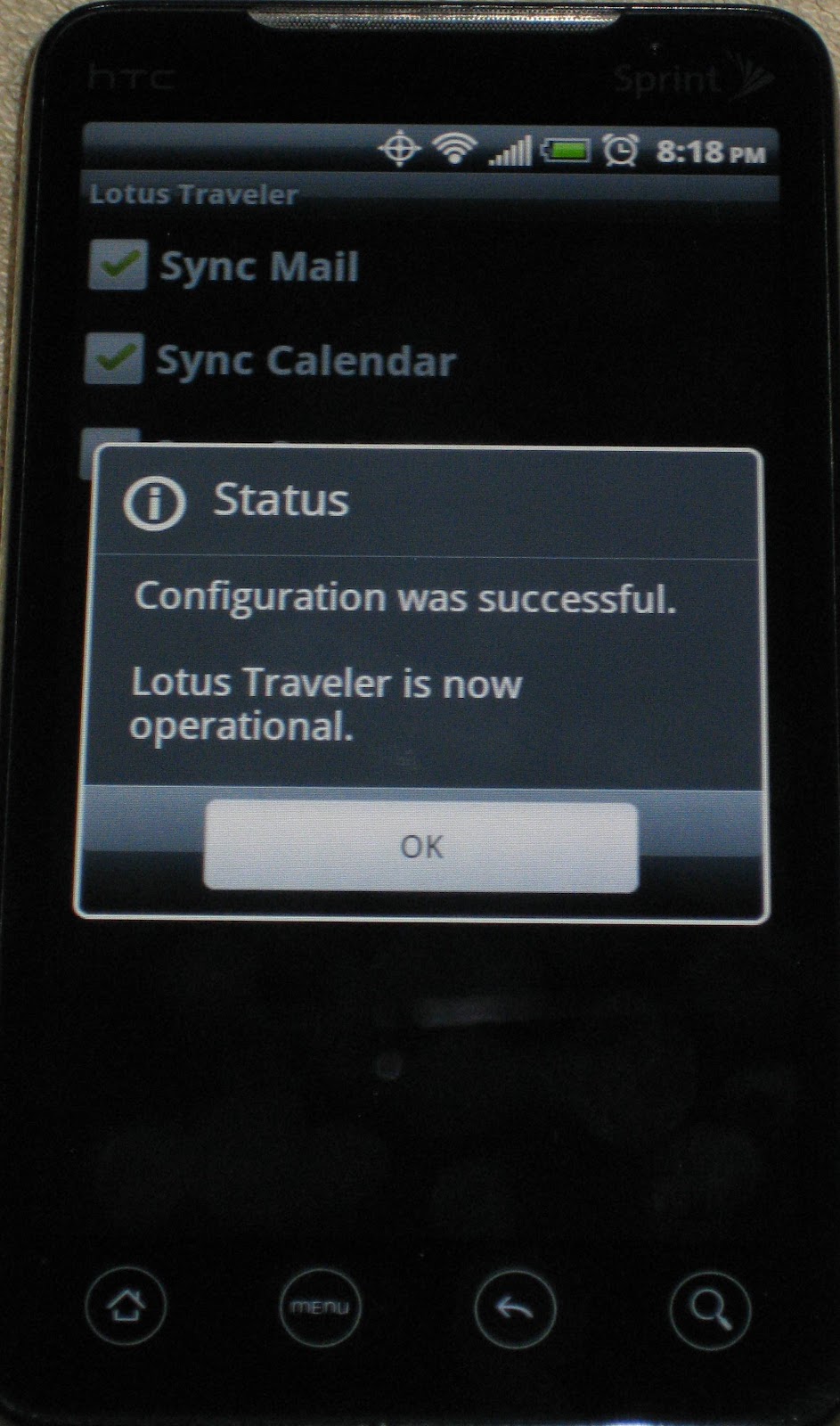
Click 'Ok'


And that is it, the android beta traveler is running on Lotus Domino 8.5.2.

Sprint... really?

I just received a text from sprint a couple weeks ago:

XXXX: SprintFreeMsg: kick off fall w/ a chance to win an NBC swag gift bag valued at $100 from Sprint TV & NBC. Click here: http://gospv.com/nbc Reply End to Stop.

I am shocked that my cell phone provider sent me this unsolicited text message! So I reply 'End' and they sent me this this:

Thanks for being a loyal Sprint customer. You will no longer receive info about our Just Because perks.

I did not know I signed up for those 'perks' because to hell with them! So I signed into my sprint account to unsubscribe to any other 'Perks' that are lurching in my account and I found nothing resembling 'Perks'. So I went to my block text message page and there is an awesome disclaimer:

Occasionally Sprint will send account-related text messages. You will receive these messages regardless of the options you choose here. You will not be charged for these messages.


Now that is shady...

Monday, September 13, 2010

Best app for Android!

So the best app I have found for Android phones is Juice Defender ( http://latedroid.com/juicedefender/ ). I know, goofy name but this thing really works! The interface isn't the greatest but it will extend the life of your battery.

Juice Defender can control the amount of background data that is being transfered and select apps that you want to stay connected. This is all customizable and I can go an entire day without charging under moderate phone usage. There is a free version and a pay version. I highly recommend trying it.

Lotus Script to check if a server is available

After searching through the Lotus Notes forums and blogs looking for code to determine if a server was up or not I figured out a good solution. Some of the examples I found use a template or database to check if the server is up. However there might be that chance that the template file is corrupt or missing. So here is a code snippet using the NotesDBDirectory class:


Function checkServerAvailability( ) As Boolean
' this function will check if a server is available from a user's client
On Error GoTo errorfound

Dim session As New NotesSession
Dim db As NotesDatabase
Dim dirdb As NotesDbDirectory
Dim ServerName As String

ServerName = InputBox("Enter the server name to check")

' assign database directory to dirdb variable
Set dirdb = session.GetDbDirectory(ServerName)

' grab the first database from the directory
' this line will throw the error if the server cannot be accessed
Set db = dirdb.GetFirstDatabase( DATABASE )


msgbox "Server " & Servername & " found"


checkServerAvailability = True

Exit Function

errorfound:
' since server is not found, return false with debug string
msgbox "Error" & Str(Err) & ": " & Error$

Exit Function


End Function